If it opens in a spreadsheet, this cleans it.
List Rails isn't an MLS tool that happens to read files. It's a tool for any list that arrives with far more in it than you need — and almost every list does.
MLS exports
Expireds, cancelleds, actives, comps. A standard export runs to 166 columns; most agents use about ten of them.
County tax rolls
Public records pulls, assessor downloads, parcel data. Enormous, inconsistent, and full of fields nobody reads.
Skip-trace and vendor returns
What comes back from a lookup service, usually with three phone columns and four confidence scores you didn't ask for.
Probate filings
Court records, pulled or bought. Names, addresses and case dates in whatever shape the county hands them over.
Farm and absentee-owner lists
Your farm area, out-of-state owners, a foreclosure or REO list from a lender. Somebody else's format, every time.
Two lists that need comparing
Any time the answer is "the rows in this one that aren't in that one" — which a spreadsheet makes surprisingly hard.
And it does the same five things to all of them
- Keeps columnsCheck the fields you actually use. Everything else is dropped, and you can rename what's left and drag it into the order you read.
- Filters rowsStack as many conditions as you want. Each one reports how many rows it alone would pass.
- Cross-referencesMatch the list against itself and keep only what does — or doesn't — appear somewhere else in it. This is the one a spreadsheet fights you on.
- Removes duplicatesOne row per address, per record number, per person. Whichever one means "the same thing" in your file.
- Hands it backExcel, CSV, a file renamed for your CRM's import, or address components for a lookup vendor.
The rest of this page runs one all the way through. The example is an MLS export, because it's the messiest list most agents touch and it shows every feature at once. If yours is a tax roll or a spreadsheet a vendor sent you, the screens are identical — only the column names change.
Three clicks, if a preset fits.
Drop your export in, pick the job you're doing, take the file. The three screens in between are there when you want them — a preset sets all of it for you and drops you at the download.
Get your list out
This is the part that isn't List Rails, and it's where most people actually get stuck. You need a spreadsheet before you have anything to clean. Whatever system holds your list — an MLS, a county site, a CRM, a vendor portal — find its export and take the file.
Working the MLS example: run your search the way you normally would — set Listing Status to Expired, pick your date range and your area.
Select the results, then use your MLS's Export option and take the full spreadsheet export. Don't trim anything; extra columns cost you nothing here.
Save the .csv or .xlsx somewhere you'll find it. That file is what you drop in.
One thing that changes what you can do
If you want the expireds that haven't been relisted — the ones where the agent still has an unsold house and no plan — pull Active and Expired in the same export, not two separate ones. List Rails matches them against each other by address. One file in, both statuses, and the scrub can actually run.
Coming from somewhere else? Same job. A tax roll, a vendor return, a CRM export, a spreadsheet a lender sent you — export it whole, save the .csv or .xlsx, and skip to the next step. The named presets below are written for MLS pulls and each one tells you up front whether your file has what it needs; for anything else you'll want Build it myself, which is the section further down this page.
Drop it in
Go to app.listrails.com and drag the file anywhere on the page — or click Choose a file.
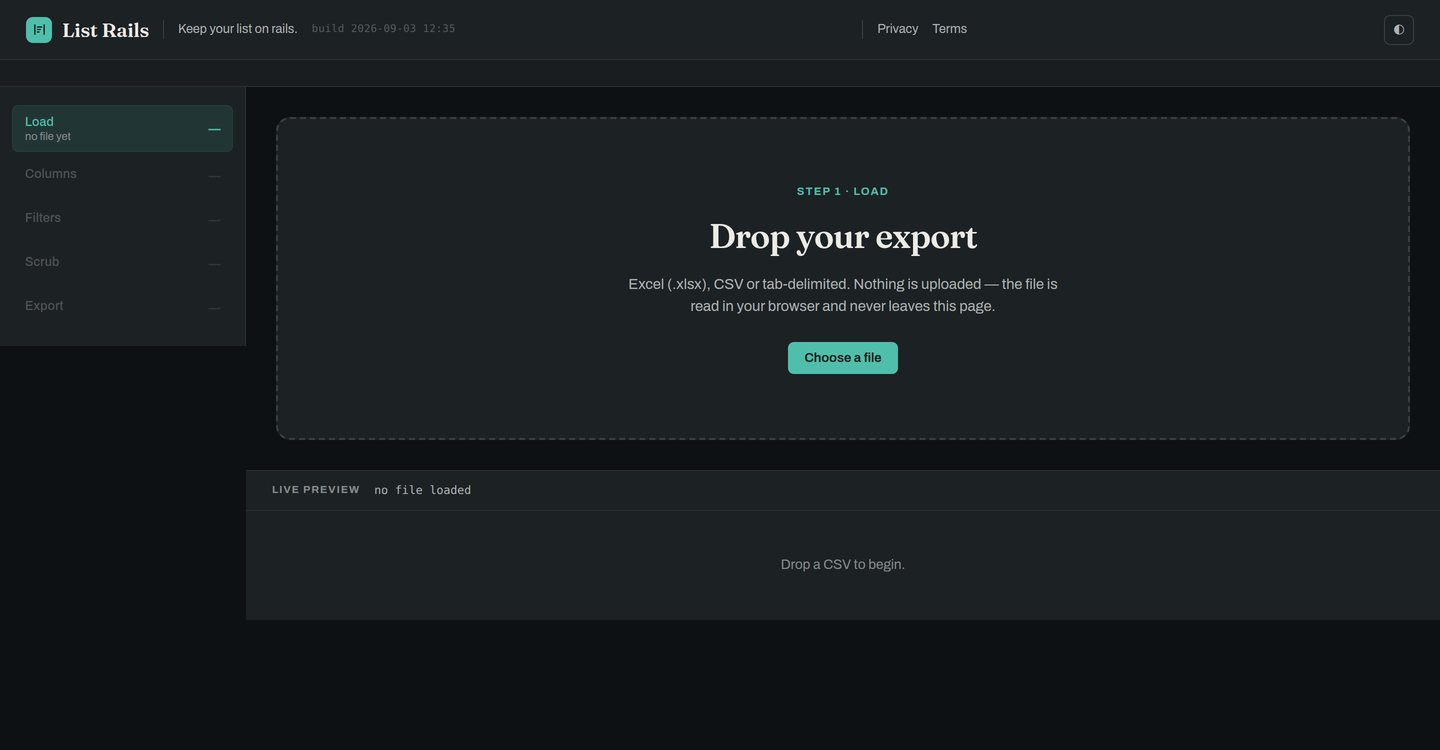
Nothing is uploaded. The file is read by your own browser and stays there — there is no server on the other end to send it to, which is also why this works on a listing appointment with one bar of signal.
Pick what you're doing
The moment the file lands you get one question: what do you want out of this list? Click a preset and it sets the columns, the filters, the cross-reference and the column order in one go.
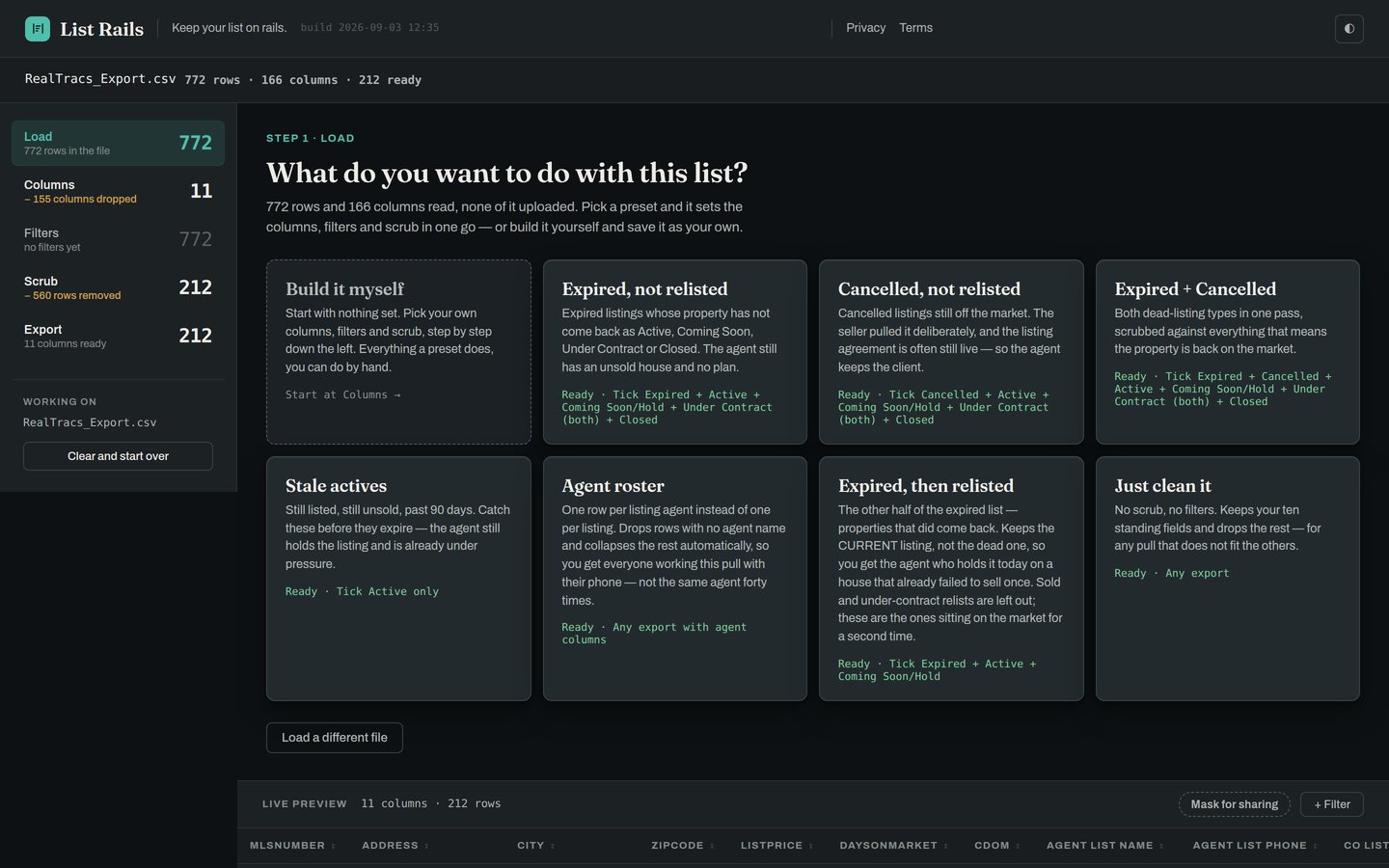
- Every card says Ready or why notEach preset checks your file first and tells you which statuses it needs. A preset that can't run on your export says so instead of half‑working.
- The count down the left is live772 rows in, 155 columns dropped, 560 rows scrubbed. It updates as you go, so you can see what each step actually took off.
- Nothing is finalA preset is a starting point, not a lock. Change anything after it runs and the count follows.
If you only ever use one: "Expired, not relisted" is the one that does the work you can't do in the MLS. It keeps the expired listings whose property never came back as Active, Coming Soon, Under Contract or Closed — so what's left is the houses that genuinely didn't sell and haven't been picked back up.
Take the file
The last screen asks the only remaining question: what do you want out of it?
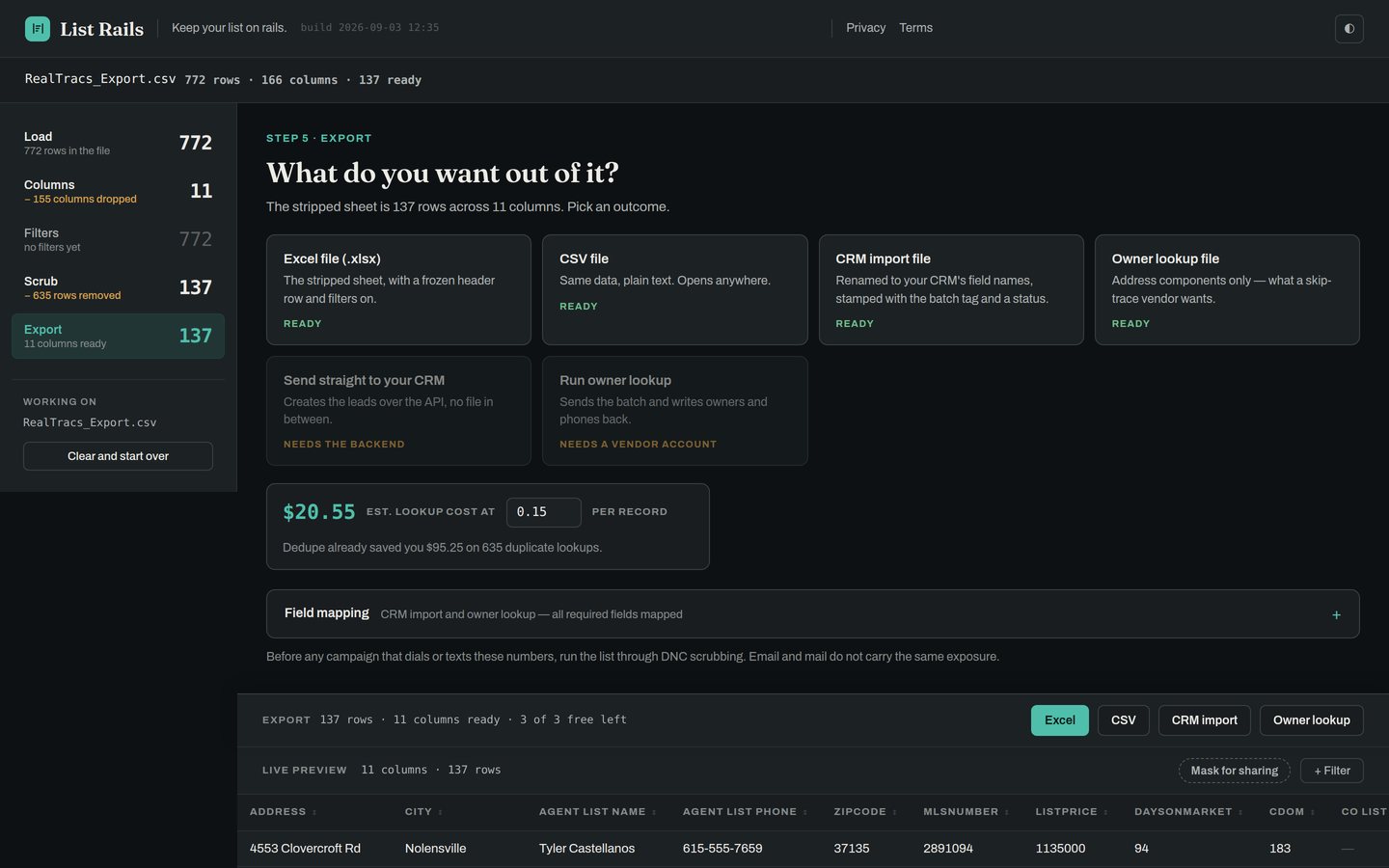
Excel (.xlsx)
The stripped sheet with a frozen header row and filters already on.
CSV
Same data, plain text. Opens anywhere, imports into anything.
CRM import
Renamed to your CRM's field names and stamped with a batch tag and a status, so the import maps itself.
Owner lookup
Address components only — the shape a skip‑trace vendor asks for. It also prices the batch before you send it.
That's the whole job. If a preset fit, you never touched the three screens in the middle.
Doing it by hand.
Pick Build it myself and you work down the left rail instead — Columns, Filters, Scrub, Export. Everything a preset does, you can do yourself, in any order, changing your mind as often as you like.
Columns — check what you keep
Ten standing fields arrive already checked. Everything else is left for you.
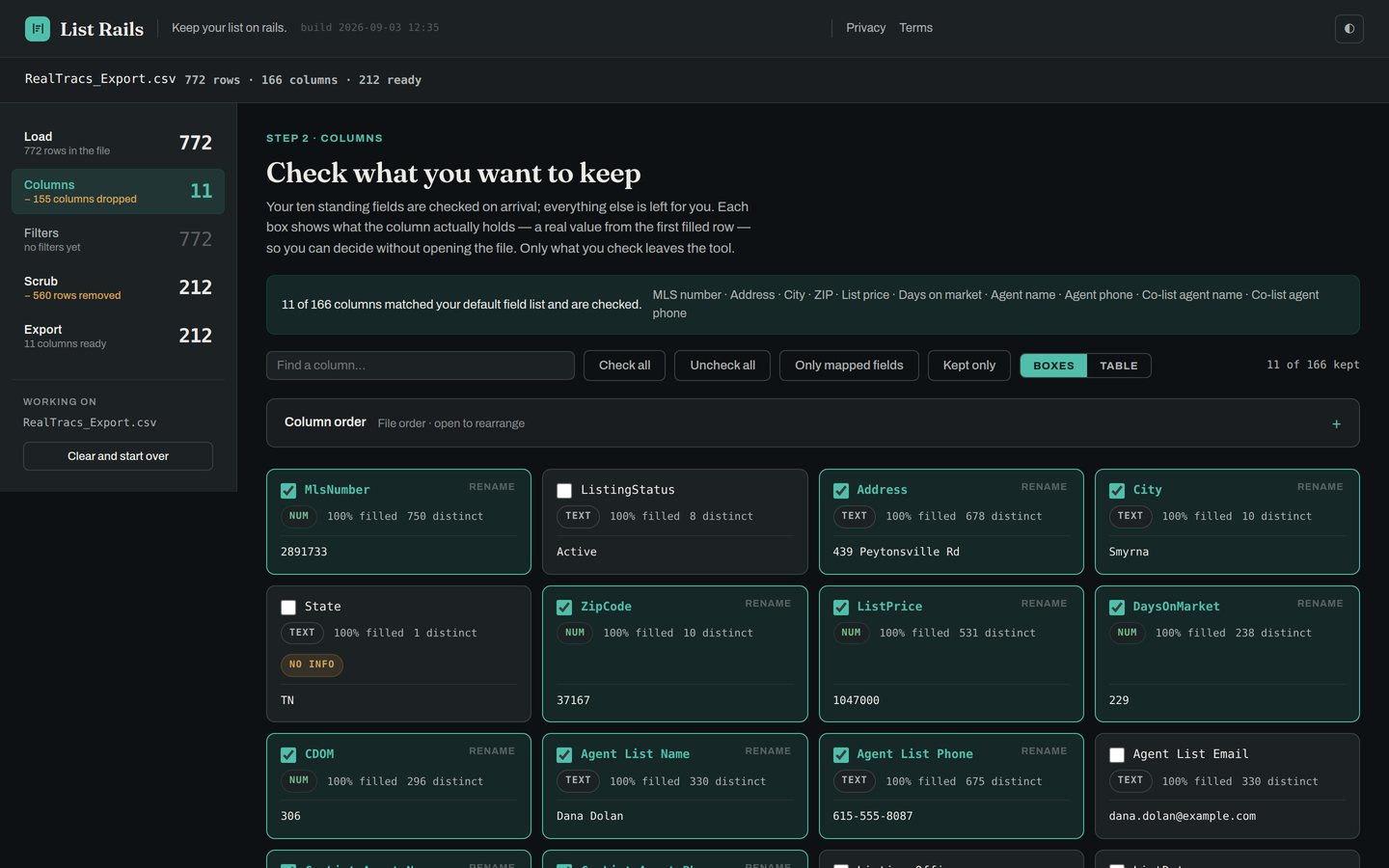
- It tells you what's emptyA column marked no info holds the same value in every row, or nothing at all. Those are the easy ones to drop.
- Rename anythingIf your CRM calls it something else, rename it here and it exports under the new name.
- Drag them into orderPut the phone number where your eye already goes. That order carries into every export and into your saved presets.
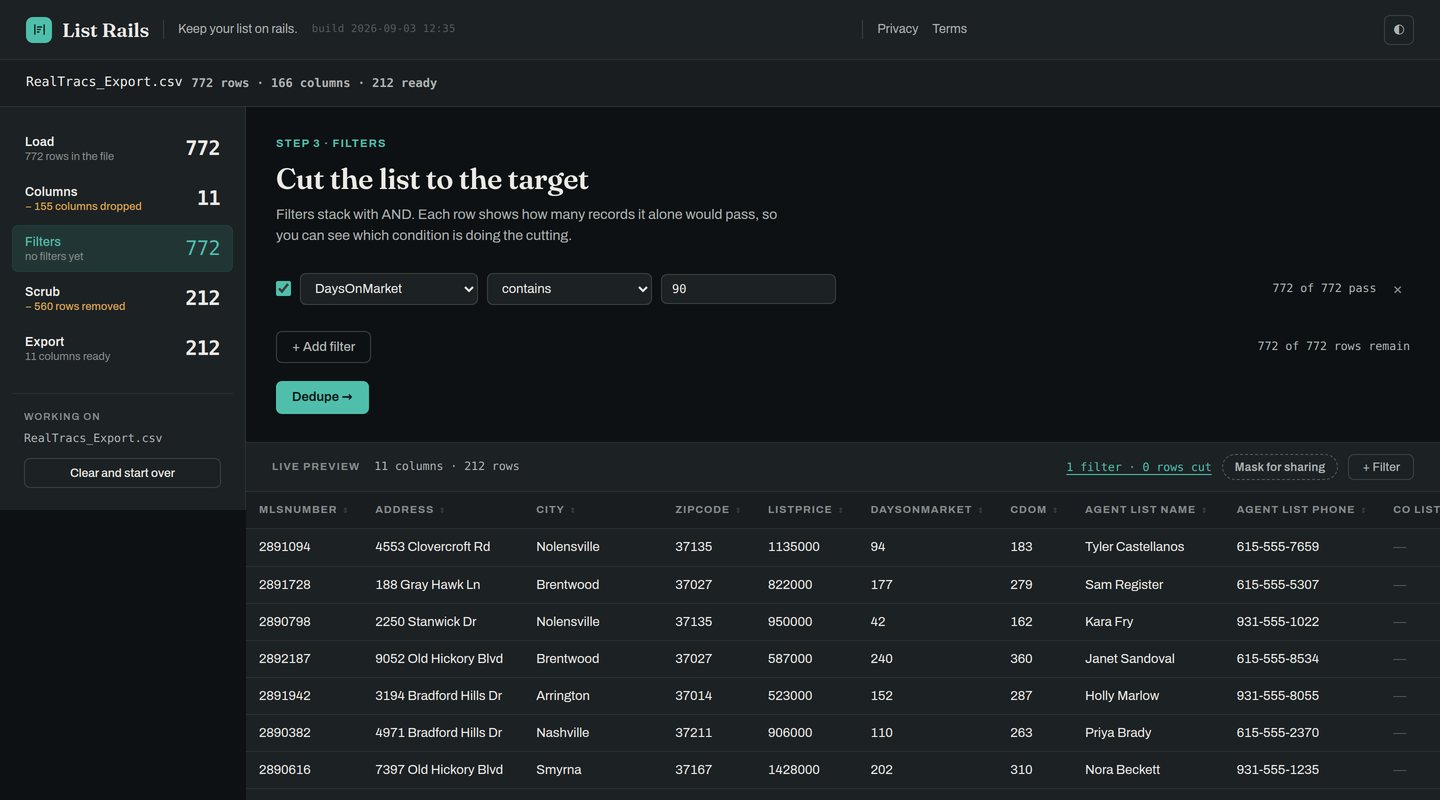
Filters — stack your conditions
Days on market over 90. Price under 400,000. City is one of three. Add as many as you want.
Scrub — the part the MLS won't do
Cross-reference the statuses against each other, then collapse the duplicates.
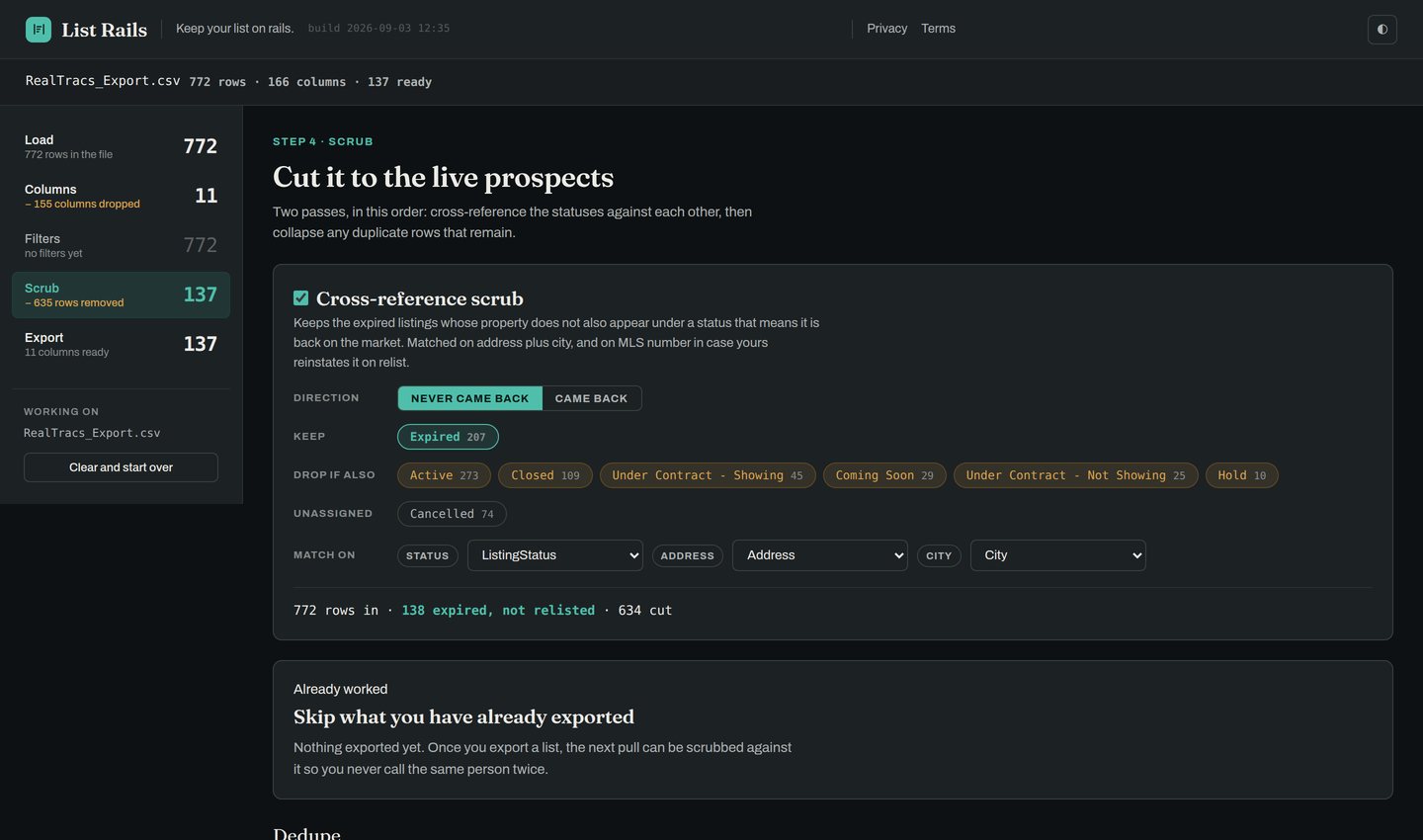
- Cross-referenceKeep the expireds whose address never shows up as Active, Coming Soon, Under Contract or Closed anywhere else in the file. Or flip it, and keep only the ones that did come back.
- DedupeOne row per address, or per MLS number, or per agent. A house listed three times is one call, not three.
- Don't call the same door twiceList Rails remembers what you've already exported — match keys only, never the rows themselves — and can drop those from a later pull.
Three things people find later.
You can screenshot it safely
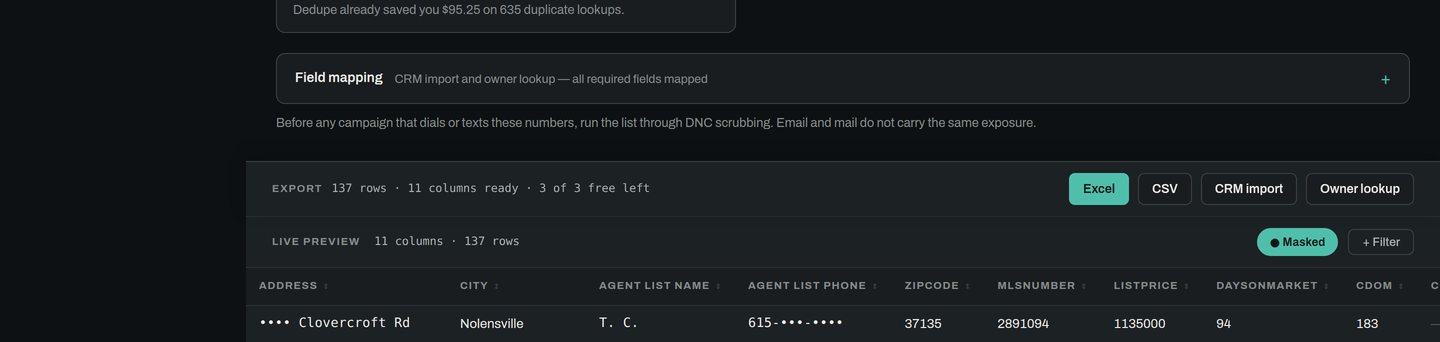
Mask for sharing blanks the street numbers, agent names, phones and emails in the on‑screen preview — and only in the preview. Your export is never masked.
Call the numbers responsibly
Before any campaign that dials or texts, run the list through DNC scrubbing. Email and mail don't carry the same exposure. List Rails cleans your list; it doesn't clear you to call it.
Three lists to try it
The first three lists are on the house — no card, no account, nothing to cancel. Three is enough to know whether it saves you the twenty minutes it claims. After that it's Pro. Monthly billing isn't switched on yet, so while we're in beta the founding year is the only way to pay — $199 for the year, and you keep that rate.
The ones people actually ask.
Do I have to upload my list anywhere?
No, and there is nowhere to upload it to. The whole tool is one page that runs in your browser; your file is read on your own machine and never sent. Close the tab and it's gone. That's also why it works with no signal.
Is my MLS going to have a problem with this?
You're exporting your own data out of your own MLS account, the same as exporting to Excel, and then working on it on your own computer. Nothing is shared, published or sent anywhere. Your MLS's rules about what you may do with listing data still apply to you exactly as they always did — List Rails doesn't change them, and it doesn't check them for you.
What if my export isn't from RealTracs?
Then it very likely still works. The column matcher looks at what your file actually holds rather than expecting fixed headers, so another MLS, a tax roll or a vendor spreadsheet all load fine. The presets that cross‑reference statuses need a status column to work with, and each one tells you up front whether yours has it.
How long does it really take?
About a minute for a preset run, most of which is finding the file. Doing it by hand — picking columns, stacking filters, setting the scrub — takes a few minutes the first time and much less after that, because you can save the setup and reuse it.
Does it work on my phone?
It loads and runs, but a 166-column spreadsheet is a rough thing to work on a phone screen. This is a desk job.
What does it cost?
The first three lists are free — no card, no account. After that it's Pro, $39 a month at launch. Monthly billing isn't switched on yet, so while we're in beta the founding year is the only way to pay: $199 for the year, locked for as long as you keep it. Team and Office pricing is on the home page.
Go try it on a real sheet.
Take a spreadsheet you already have sitting in your downloads folder. It costs you a minute to find out.